

How it all works

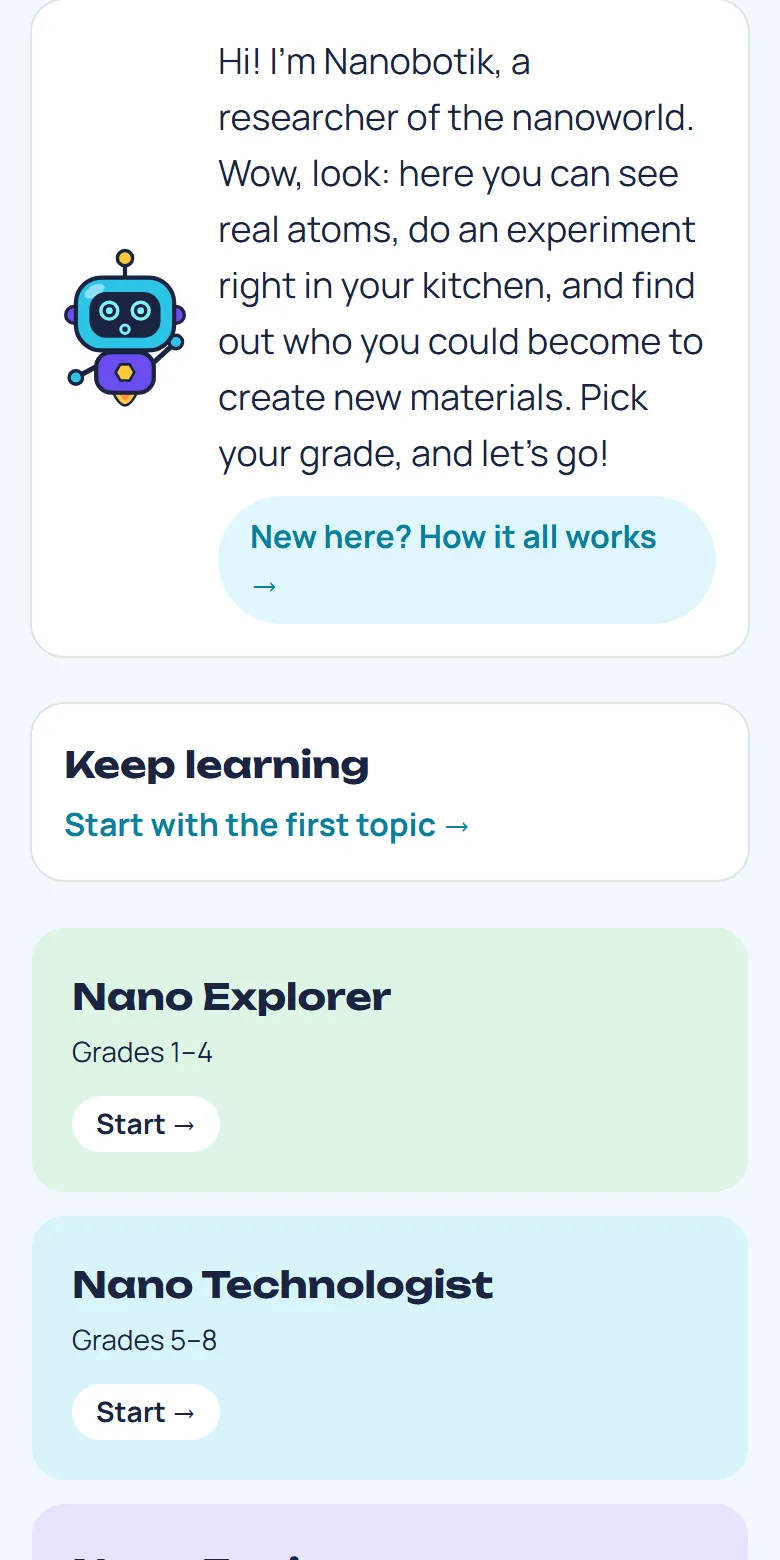
Hi! I’m Nanobotik. I’ll show you what’s here and where to start. It takes about three minutes.
Nanobotik is a free website about nanotechnology for school students in grades 1–11. Here you can read, learn, take quizzes, collect nanoparticles and show your own research projects. Here’s everything, step by step.
Without signing up

You can start reading right away — no sign-up needed!
- Read materials for your level: grades 1–4 (“Nano Explorer”), grades 5–8 (“Nano Technologist”), grades 9–11 (“Nano Engineer”).
- Explore the site sections, the gallery of microscope images, the events calendar and the glossary.
- Read nanotechnology news and knowledge base articles.
- Take lessons and quizzes in “Learn” — your results are kept in this browser.
- Look at research projects by other students.
- Search for anything and switch the language: Russian or English.
- Play games and run virtual experiments.
- Watch videos with Nanobotik — at the start of lessons and in the Videos section. Turn subtitles on or off in the player.
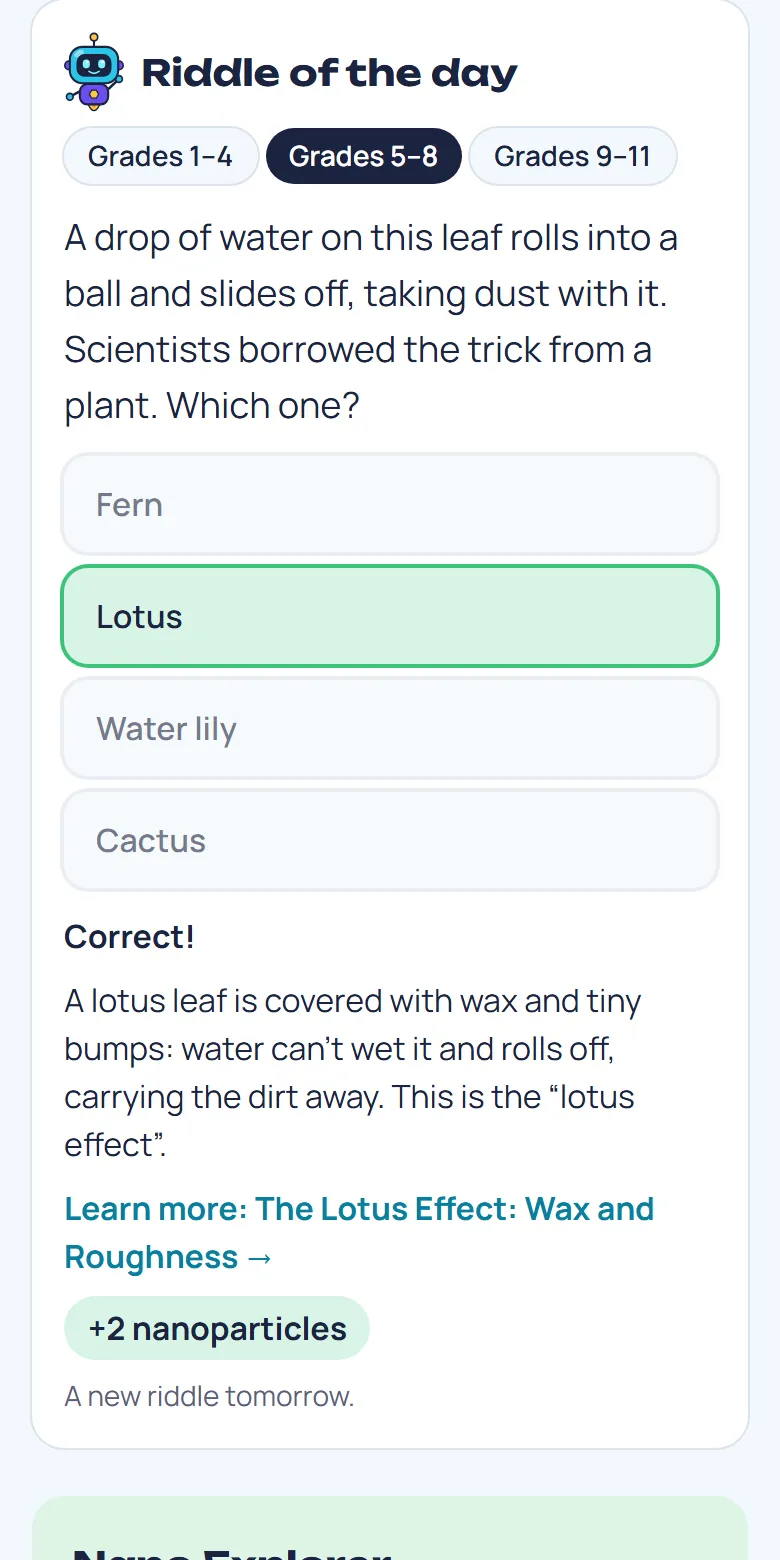
- Solve the riddle of the day on the home page: a new one every day, a different one for each level. You get one answer — then Nanobotik explains why.
- In the game “Nano or not nano?” you can swipe a card right or left with your finger — or press a button.
Sign up in a minute

Make up a nickname — you don’t need your real name here!
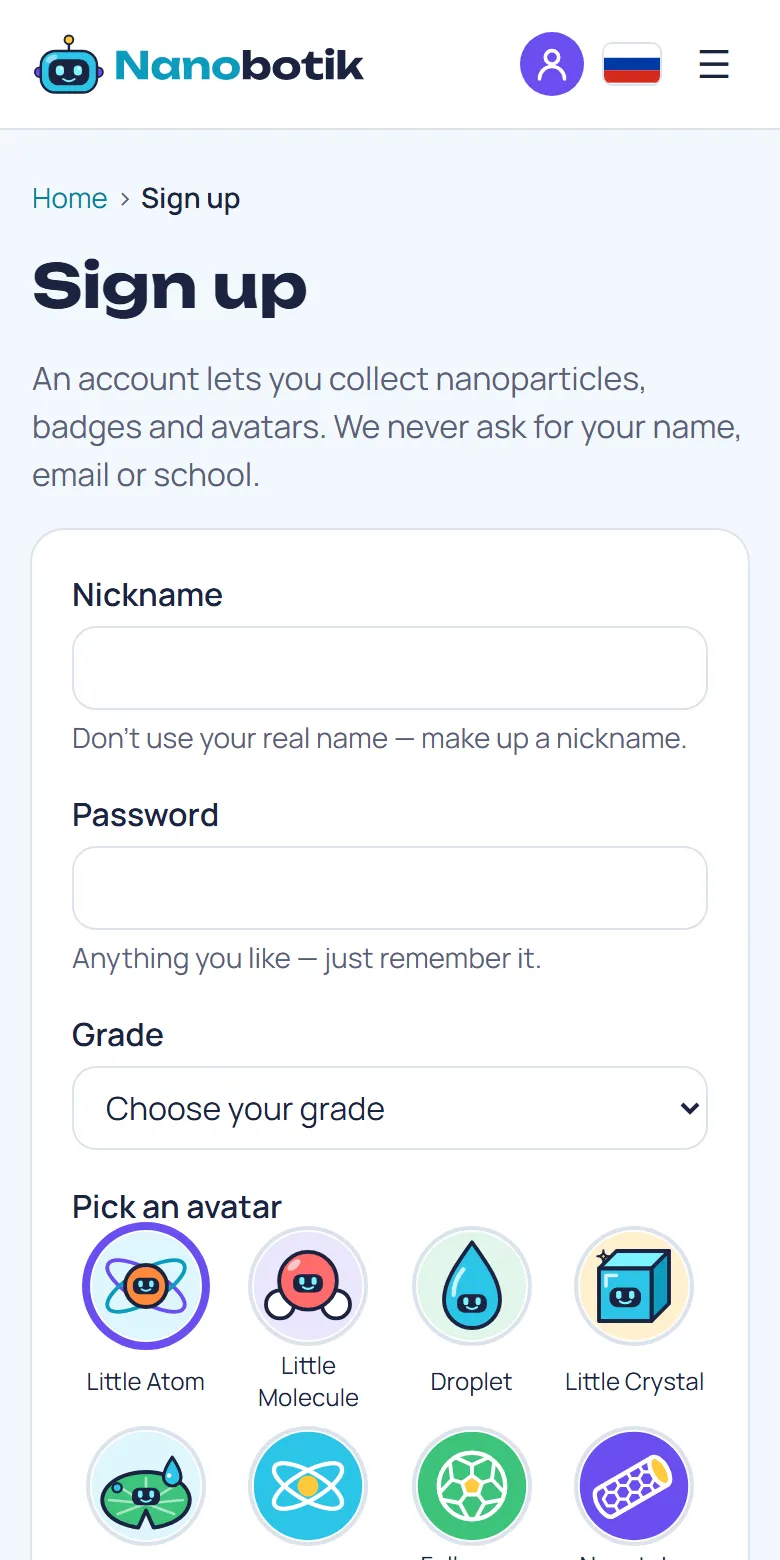
- Press “Sign in” at the top of the page (on a phone it’s the person icon), then “Sign up”.
- Choose a nickname and a password, pick your grade and an avatar. We don’t ask for your name, surname, email or phone number.
- After signing up, the site shows a recovery code. Write it down and keep it safe: you’ll need it if you forget your password.
- If you took quizzes on this device before signing up, your results move into your account.
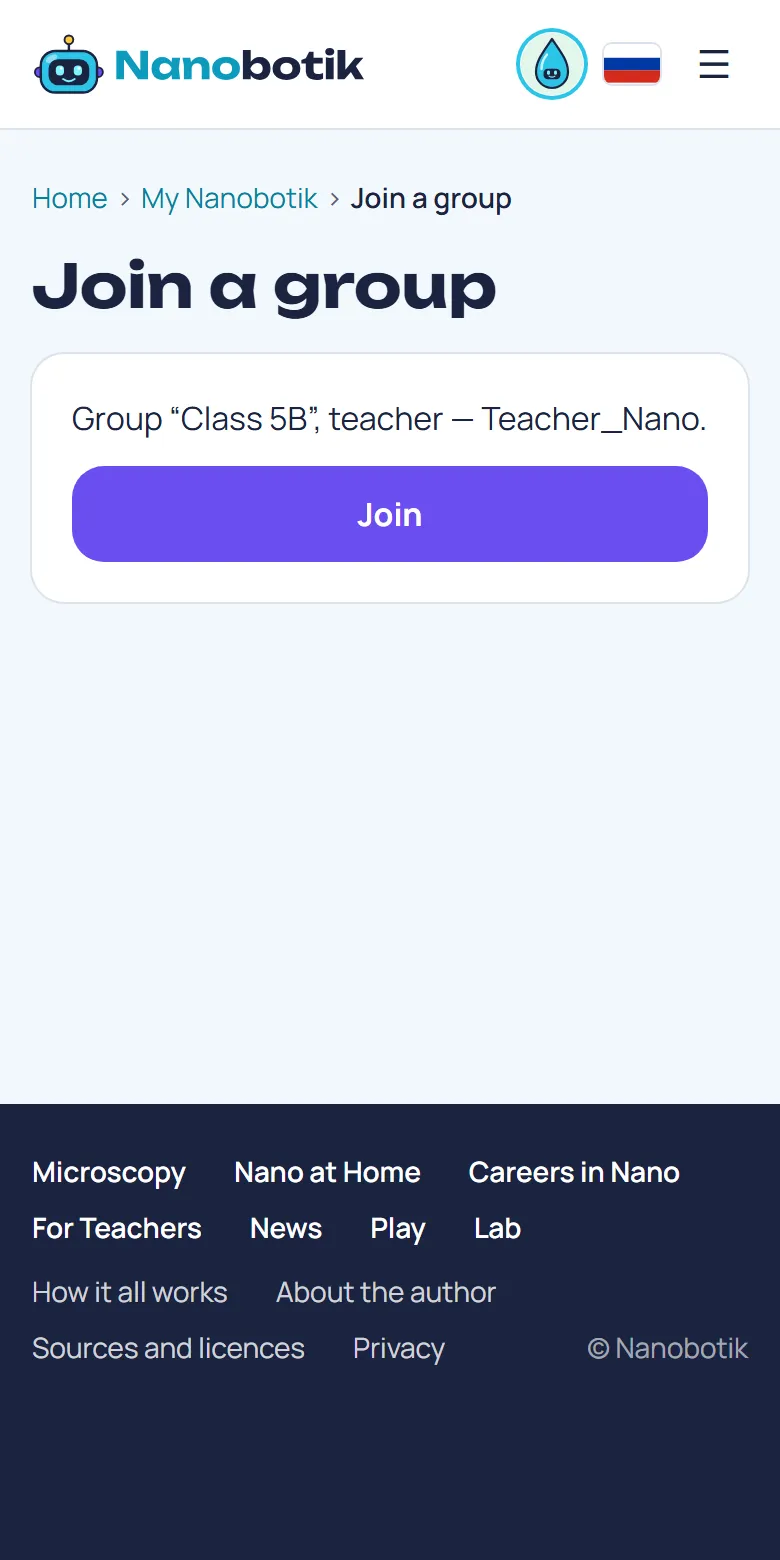
- Your teacher can give you a group code or link — use it to join the group and see your assignments.
- Next time, sign in with your nickname and password. On a shared computer, remember to press “Sign out”.
Learn

Topic → lesson → quiz. Let’s go!
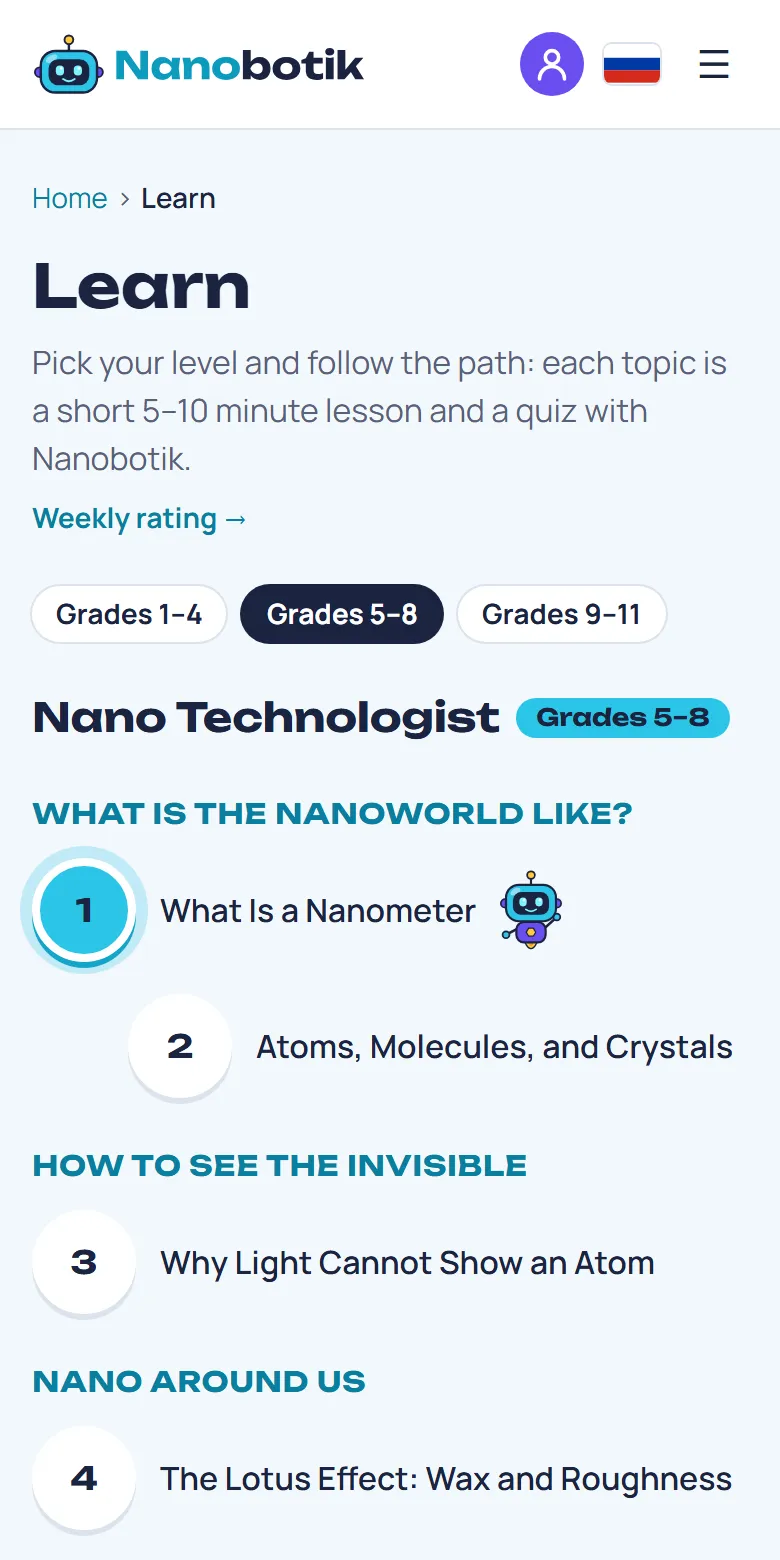
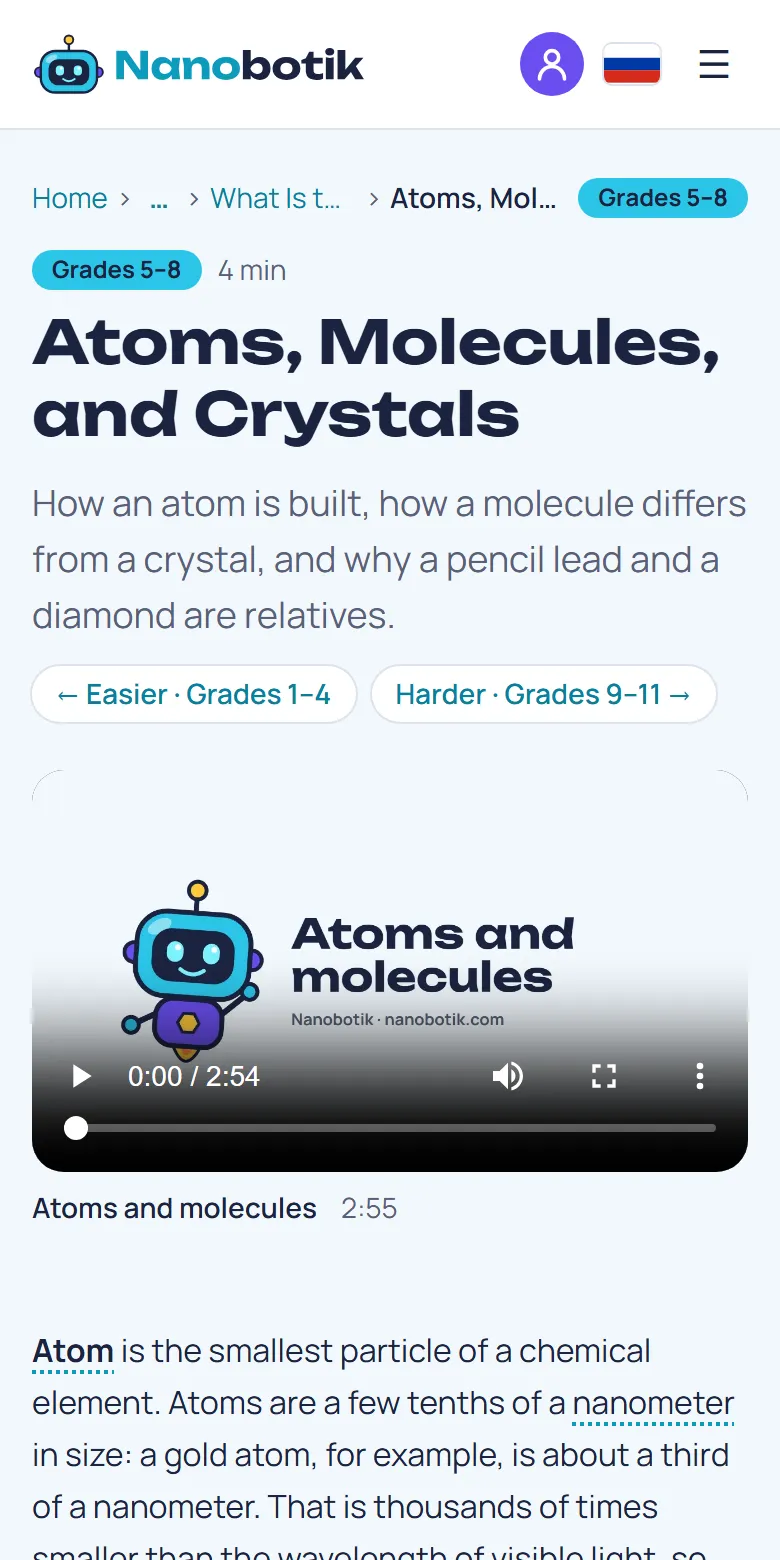
- “Learn” has topics for your level. Each topic is a short lesson of 5–10 minutes.
- After the lesson there’s a quiz with Nanobotik: pick an answer, decide “true or false”, put things in order.
- Correct answers earn you nanoparticles. They add up in “My Nanobotik” and count towards the weekly rating.
- Badges are for achievements — for example, your first topic, a quiz with no mistakes or learning several days in a row.
- Finished all the topics of a chapter or a level? Get a PDF certificate. You can add your name if you like: it stays only in your browser. Anyone can check that a certificate is real by its code.
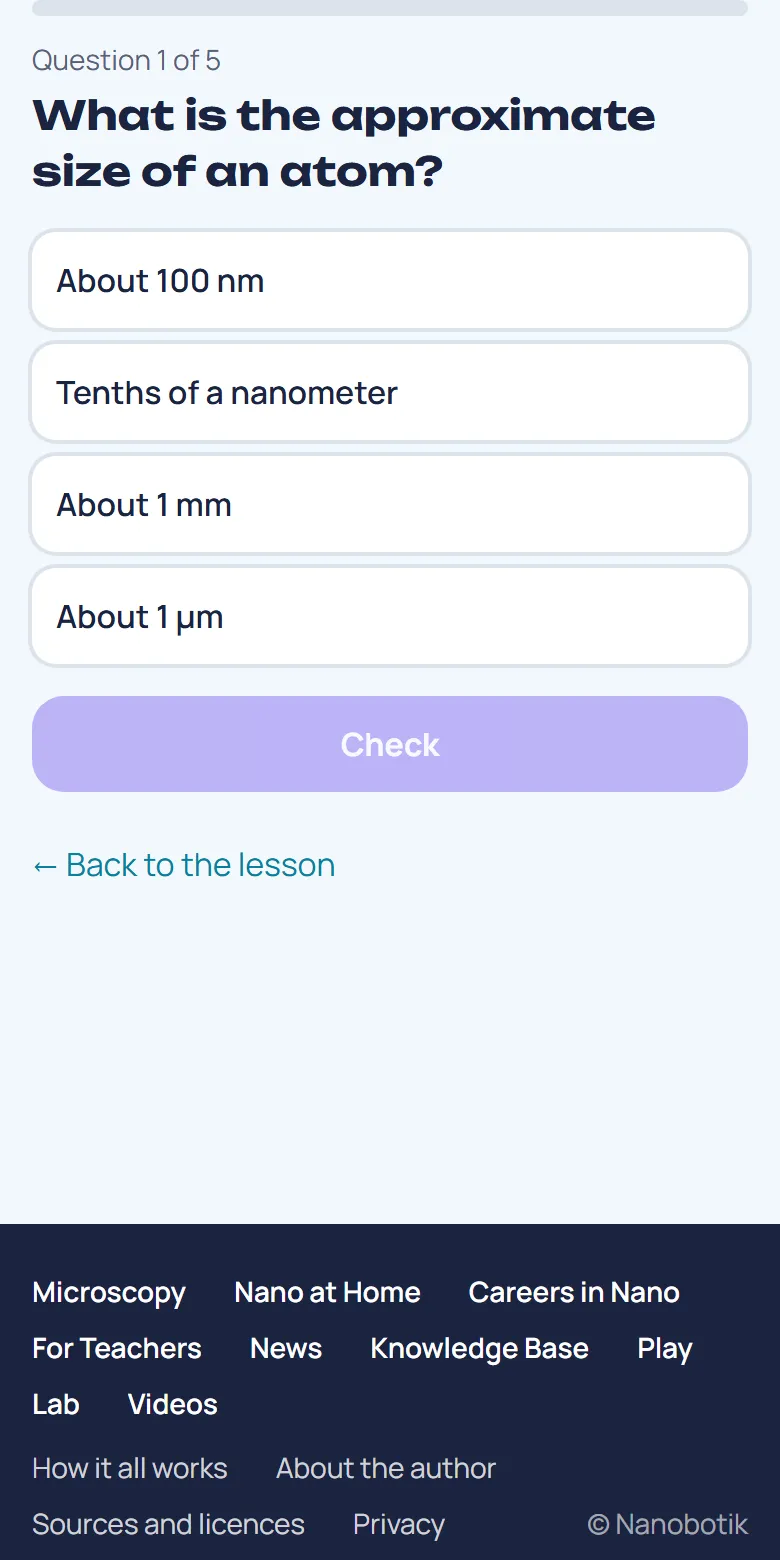
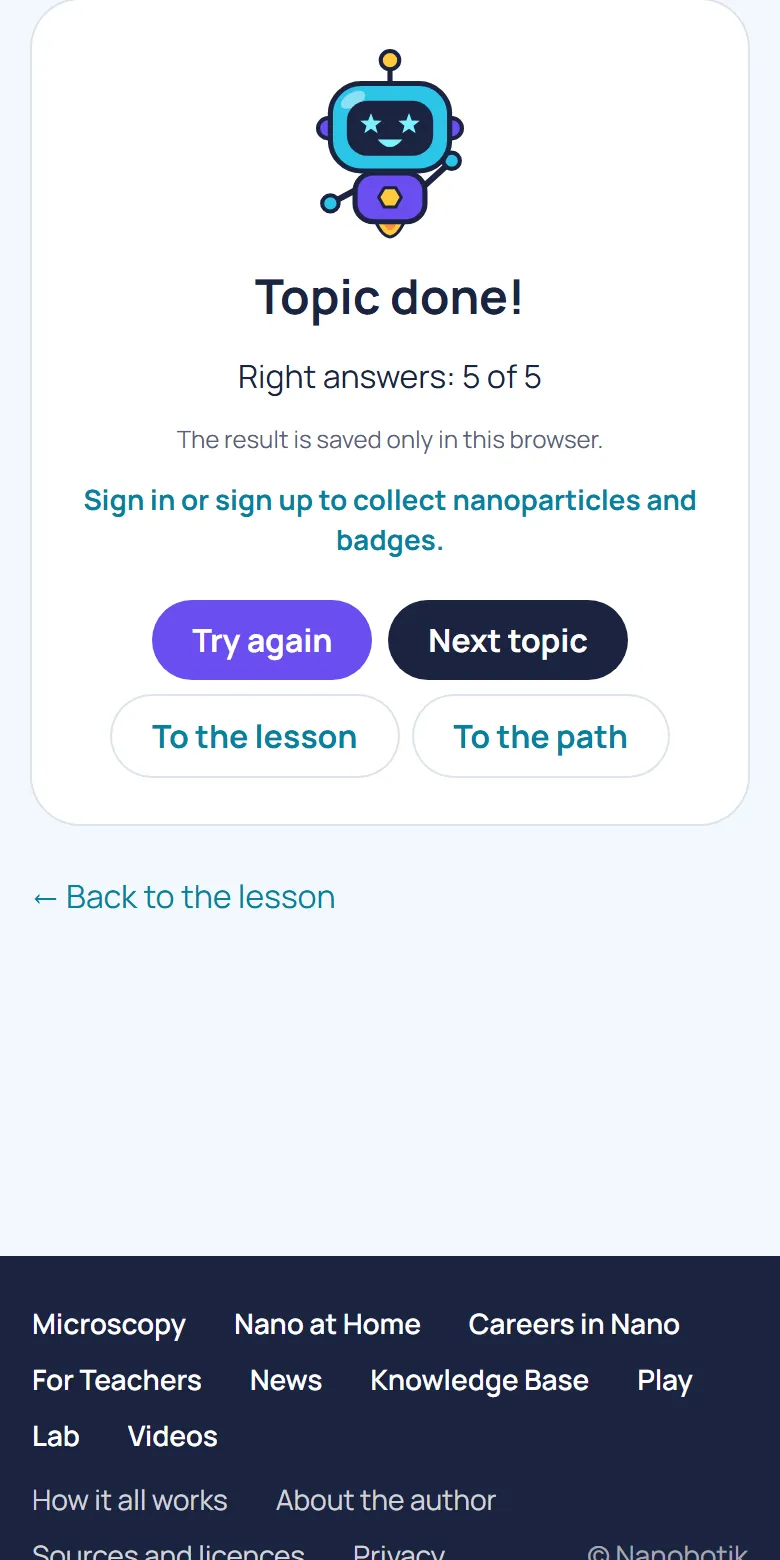

Quiz done — catch your nanoparticles and badges!
My Nanobotik
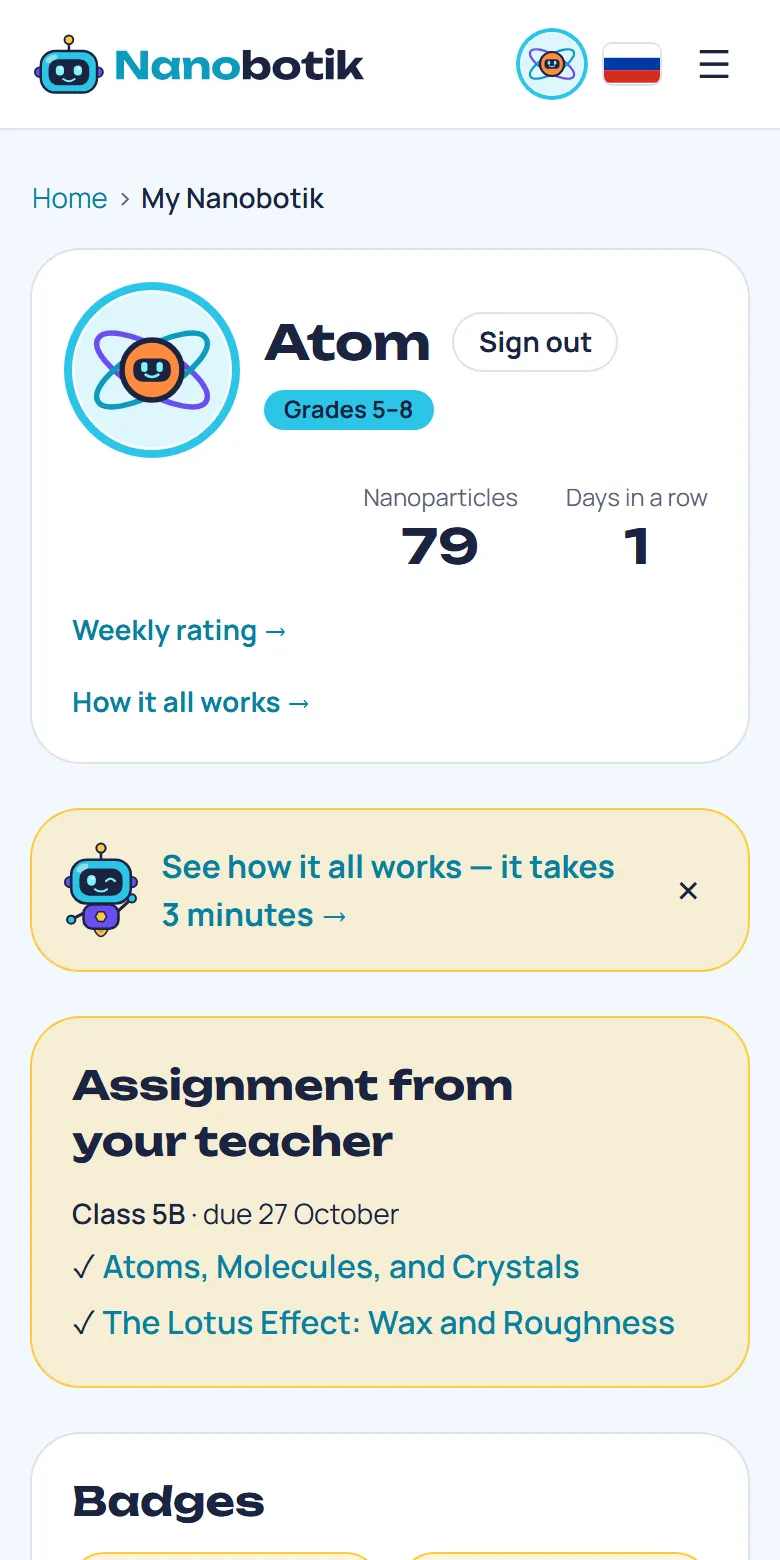
This is your page — all your progress is here.
- Nanoparticles, days in a row, badges and certificates.
- Assignments from your teacher and the groups you belong to.
- Your research projects and “New comments” on them.
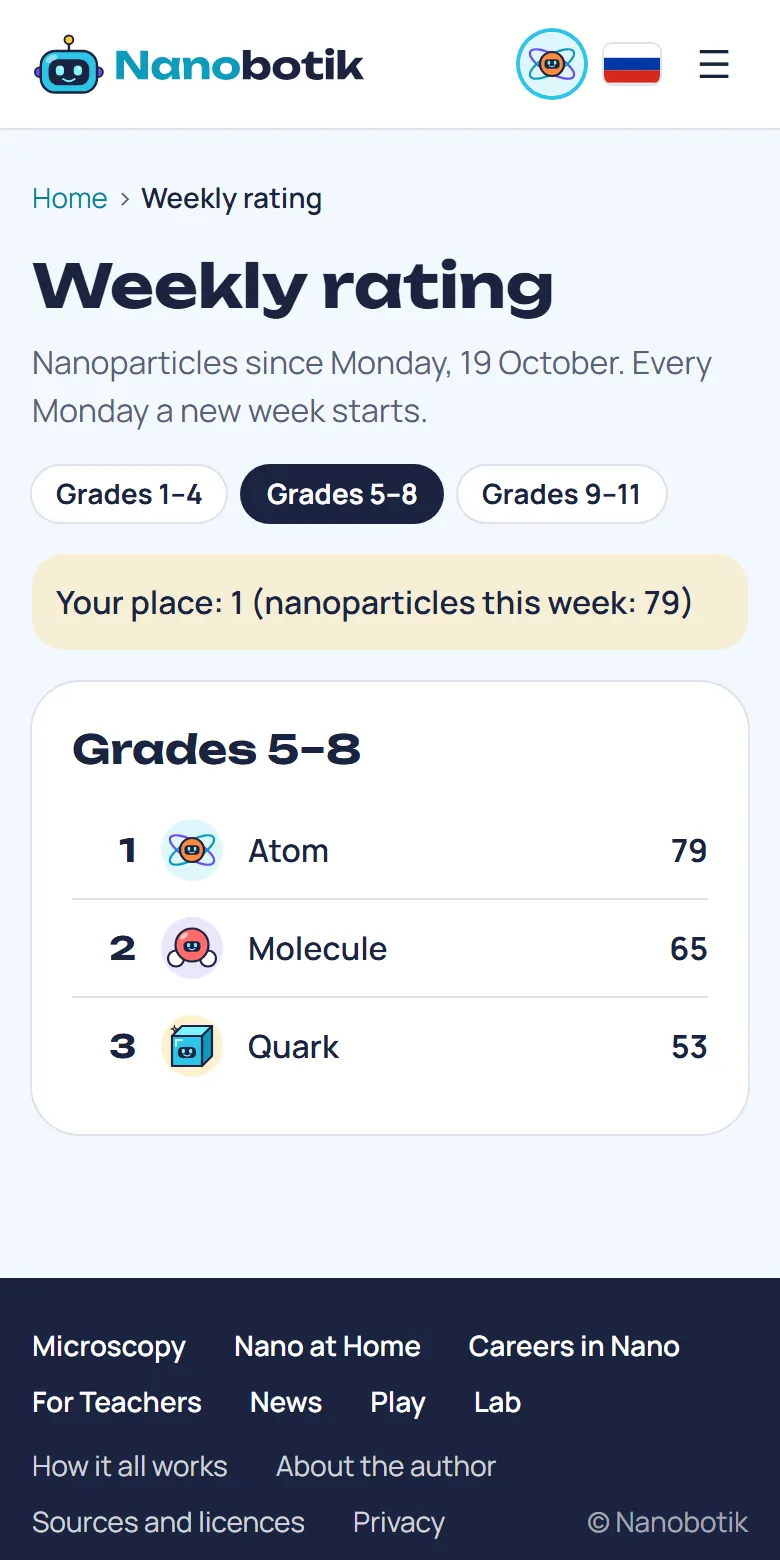
- The weekly rating starts again every Monday. Don’t want to be in the general rating? Tick “Don’t show me in the general rating”.
- Settings: avatar, grade, password and a new recovery code.
- The “Delete account” button erases your data for good.
- Nanoparticles for games and experiments: 5 for the first finish on each level, and the Player badge for three different ones.
- For each video watched to the end — 3 nanoparticles, once. Skipping to the end does not count.
- For solving the riddle of the day for your level — 2 nanoparticles, and for 10 solved riddles — the “Riddler” badge 🧩.
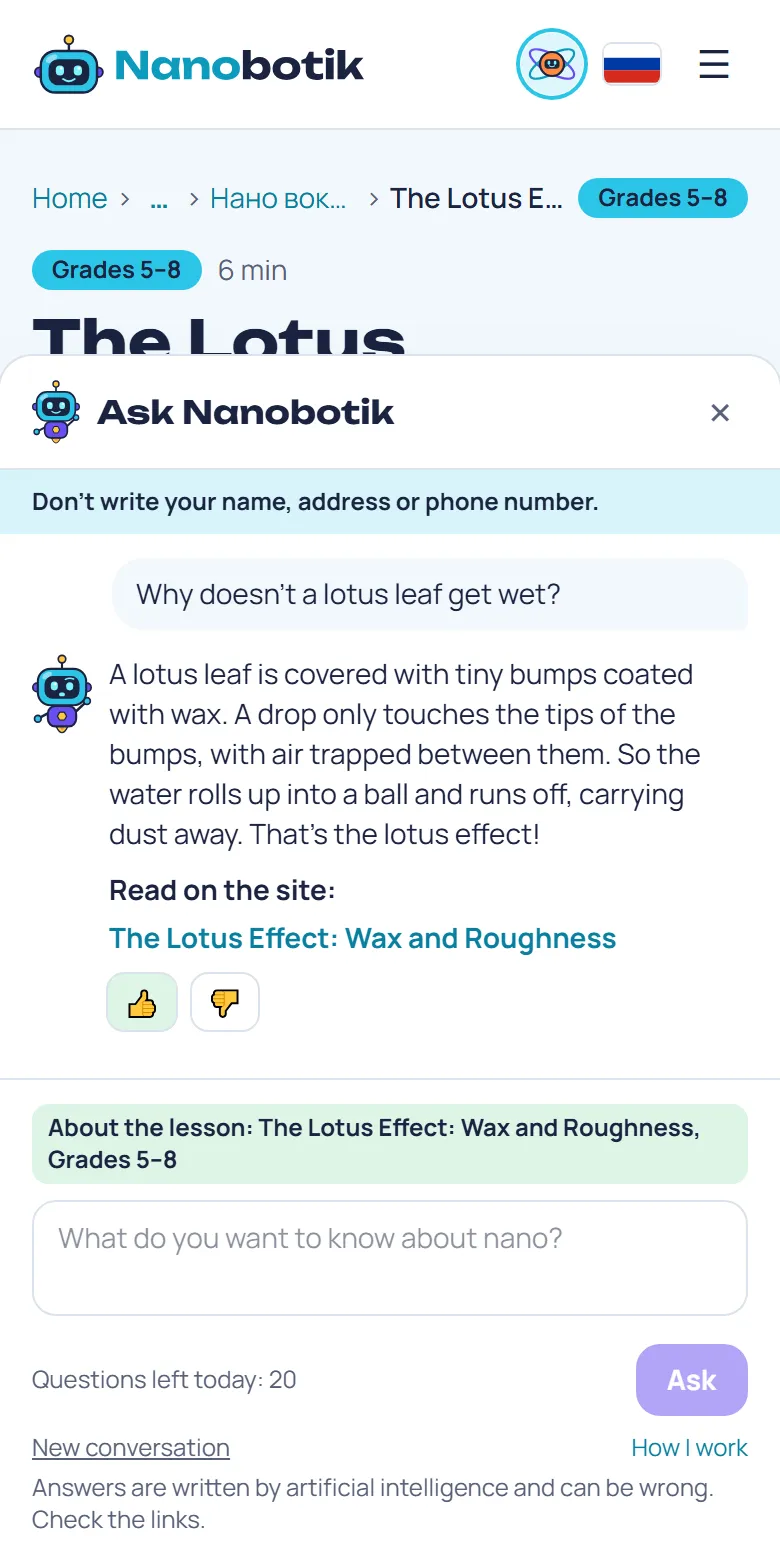
Ask Nanobotik
Didn’t get a word in a lesson? Ask me — I’ll explain it simply!
- The Nanobotik button is in the bottom right corner of the page. Signed-in students and teachers can ask questions.
- Nanobotik answers from the site’s lessons, articles and glossary — for your level and with a link to read more. If the answer isn’t on the site, Nanobotik searches trusted science websites and shows the source.
- In a lesson Nanobotik knows which lesson you’re reading, so you can ask “what does this word mean?”.
- The number of questions per day is limited — you can see how many are left under the question box. There is no button on quizzes: Nanobotik doesn’t give quiz hints.
- Nanobotik only answers questions about nano and science. If you fool around or are rude, the third time in a day Nanobotik gets offended and won’t answer until midnight (Moscow time).
- Under each answer there are 👍 and 👎 — they help make the answers better.
- Answers are written by artificial intelligence: it can be wrong, so check the links. Don’t write your name, address or phone number in questions.
For the author and moderators: the helper is switched on in the admin panel → “Site settings” → “Nanobotik helper”, together with the daily question limit and the monthly spending limit. “Helper” → “Try Nanobotik” asks a question as if from a lesson and shows what Nanobotik searched for and what it cost. “Questions to Nanobotik” is a 30-day log without nicknames, with filters and a monthly summary.
Research

Done your own research? Show it to everyone!
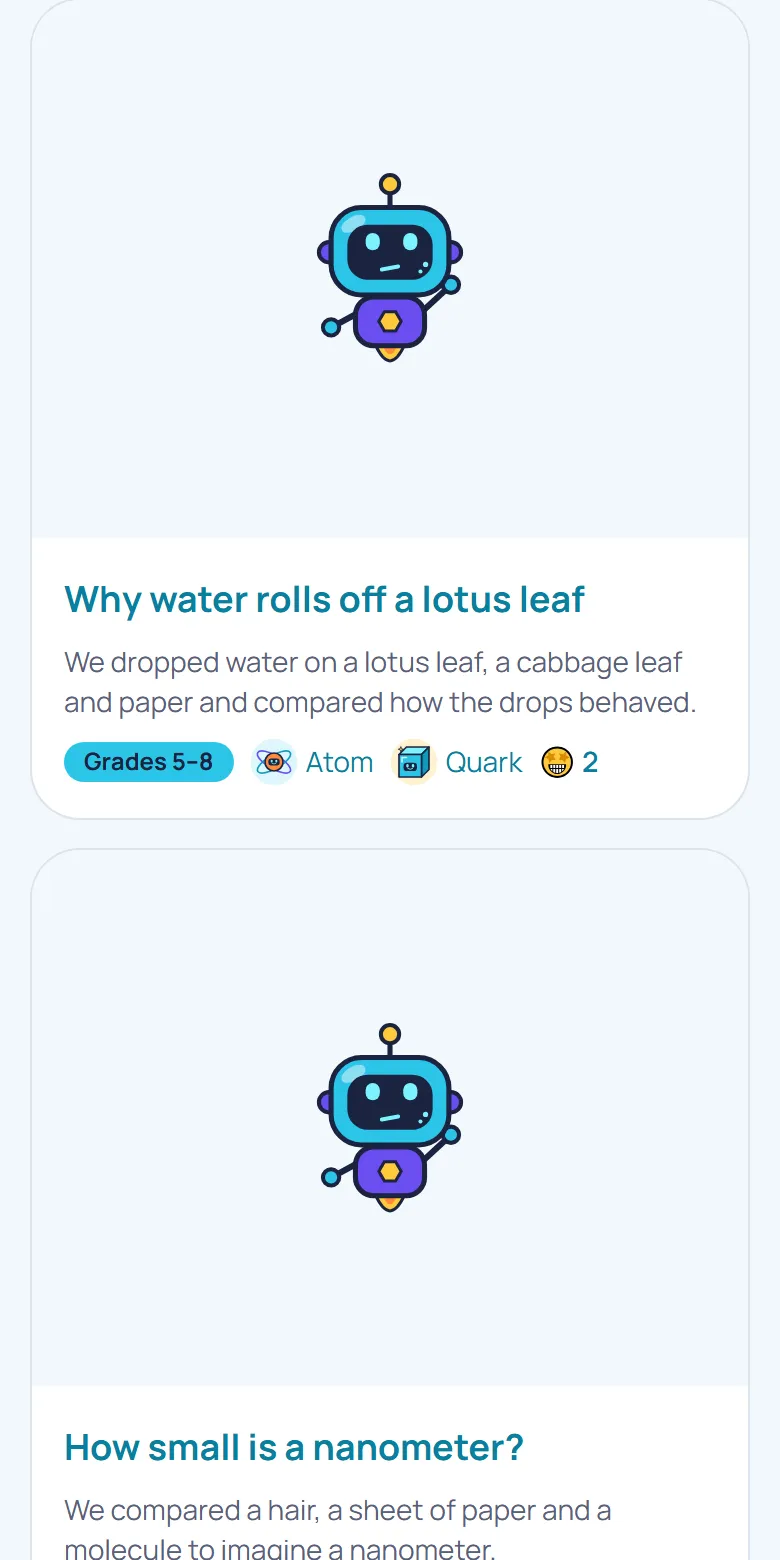
- “Research” has projects by students: the aim, what they did, results and conclusions, plus files, photos and videos.
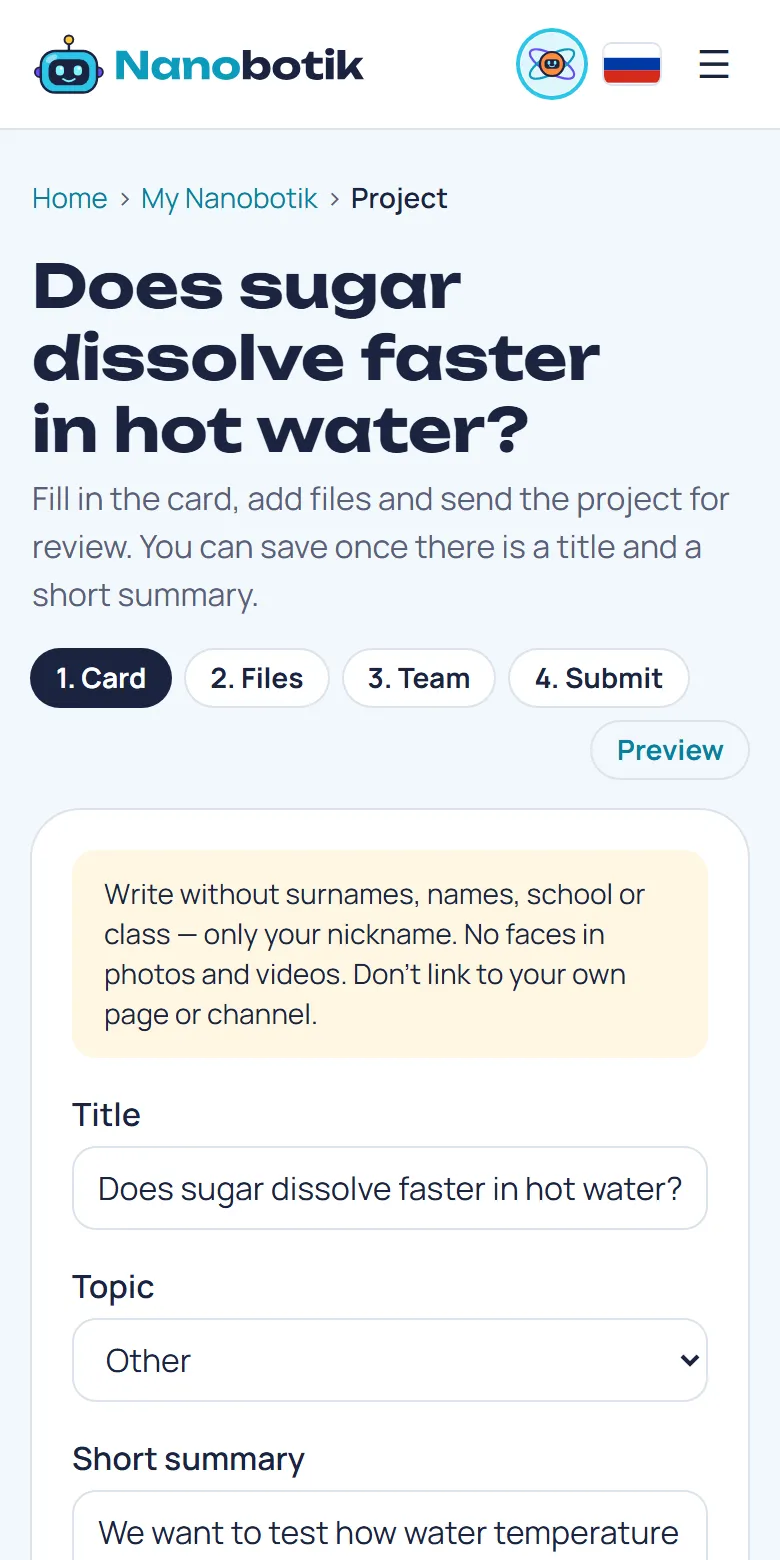
- You can submit a project in “My Nanobotik”: fill in the card, add files, invite co-authors by nickname and a teacher as supervisor.
- Before publishing, a moderator checks every project for names, surnames, school names and faces.
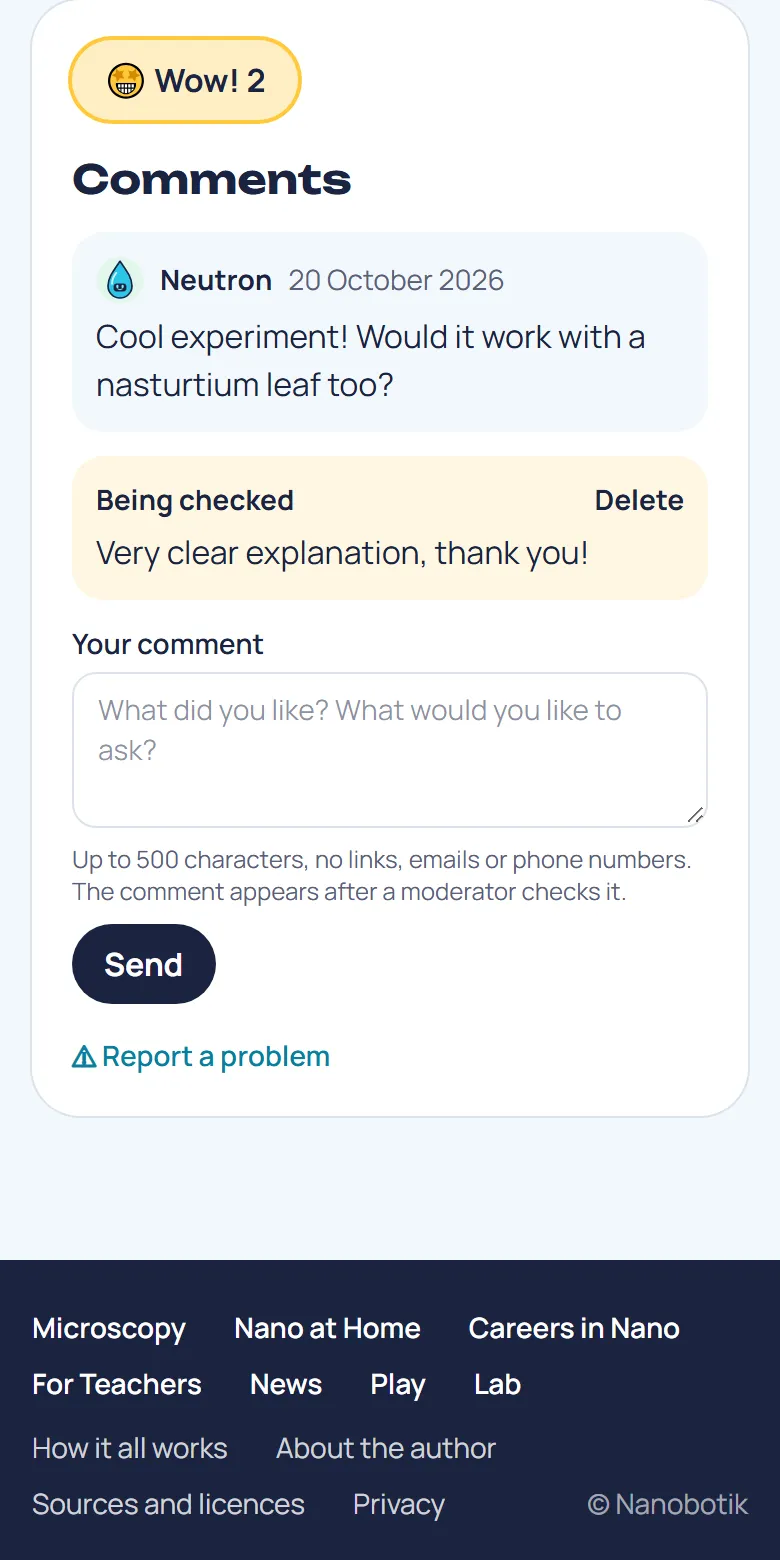
- Under a published project you can say “Wow!” and write a comment. Comments also appear after a check.
- Noticed something wrong in a project? Press “Report a problem”.
- For a published project each author gets 50 nanoparticles, and for the first one — the “Researcher” badge 🧪.
For teachers
Teachers are the most important helpers. Here’s what you can do.
- Sign up just like students, but instead of a grade choose “I’m a teacher / an adult”. Teachers are not included in the rating.
- Create a group in “My Nanobotik” — for example, “5B” or “Nano club”. Don’t put names or surnames in the group name.
- Give your students the group code or link — they join on their own. You can close joining.
- Set assignments: choose lessons and a due date. Students see them in “My Nanobotik”.
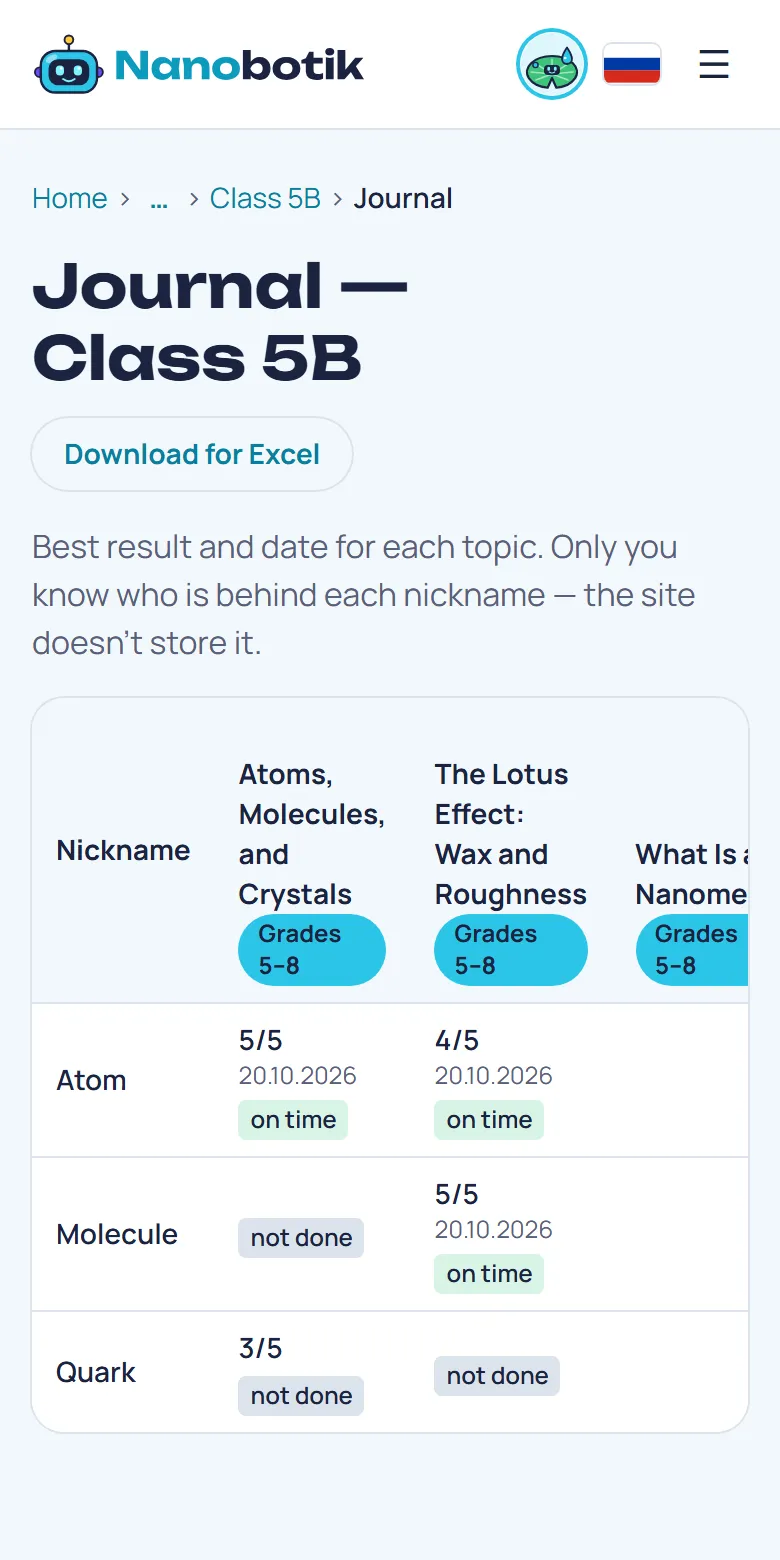
- The journal shows who has done what; you can download it as a table for Excel.
- A student forgot their password? Reset it: the site shows a temporary password, and the student makes up a new one when signing in.
- A student who joined by mistake can be removed from the group.
- Become the supervisor of your student’s research project: they invite you, you confirm. Students publish projects themselves.
- Run a live quiz in class: on the group page press “Live quiz” and choose topics — the questions come from the lesson quizzes. Students join from their phones with the code on the screen, and you keep a summary of which questions were hard.
- Show your class the microworld in 3D: the “3D gallery” has images and molecule models for red-cyan glasses, and the “How to look” page explains which glasses you need and how to make them.
What’s allowed and what’s not

Stop! Rules first — they keep you safe.
Allowed
- A nickname instead of your name
- Your own projects
- Photos of experiments and equipment — without people
- Polite comments and questions
Not allowed
- Your name, surname or school name
- Phone numbers, emails or links to your own pages
- Photos where faces can be seen
- Other people’s projects and texts
- Rude words
A moderator checks every project and every comment before everyone can see them. If something slipped through, press “Report a problem” under the project. What data the site keeps is explained on the page “Privacy”.
Who’s who
There are five roles on the site. Here’s how they fit together.
-
Guest
Reads materials and tries lessons and quizzes — without signing up.
-
Student
Learns, takes quizzes, collects nanoparticles and badges, publishes research projects.
-
Teacher
Runs groups, sets assignments, checks the journal, supervises students’ research.
-
Moderator
Checks projects, comments and knowledge base articles, looks into problem reports, can take down a news item. Gets notifications in Telegram.
-
Site author
Writes materials, lessons and quizzes, switches on new videos and interactives, appoints moderators.
How they fit together
- Student ↔ teacher: group, assignments, journal, research supervision.
- Student and teacher → moderator: projects and comments to check, problem reports.
- Site author → everyone: new materials, lessons and quizzes.
All sections and features
Everything on the site — briefly, with links.
- Home
- Welcome, levels, sections and the latest materials.
- Riddle of the day
- A new riddle for your level every day — on the home page.
- Levels
- Materials for grades 1–4, 5–8 and 9–11.
- Sections and materials
- Articles about nanotechnology by topic.
- News
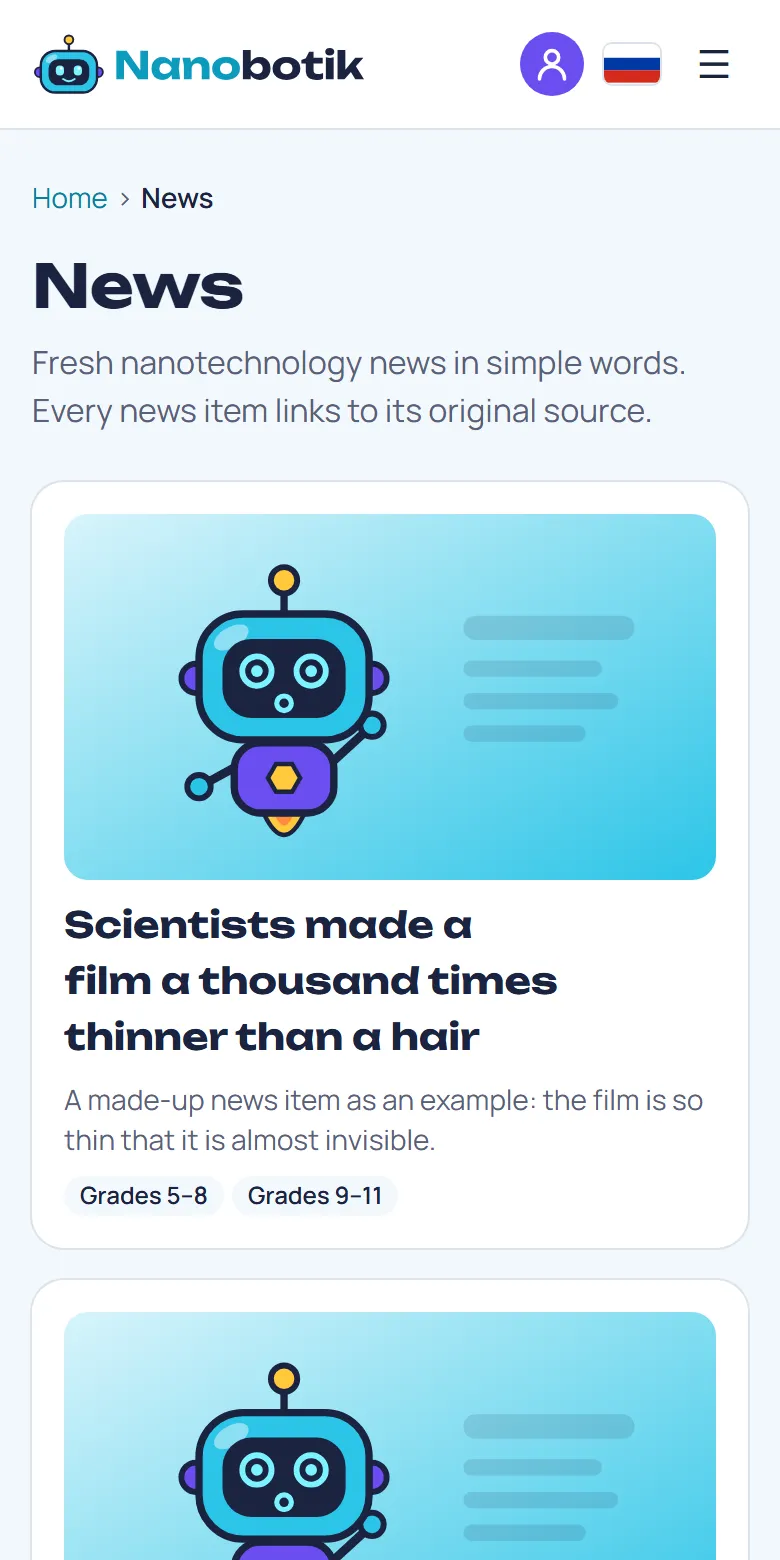
- Fresh nanotechnology news in simple words, with a link to the source.
- Knowledge base
- Articles about nanotechnology with links to the sources.
- Learn
- Topics, lessons and quizzes.
- Nanoparticles
- Points for correct answers and published projects.
- Badges
- Awards for achievements.
- Certificates
- A PDF for a finished chapter or level, checked by code.
- Play
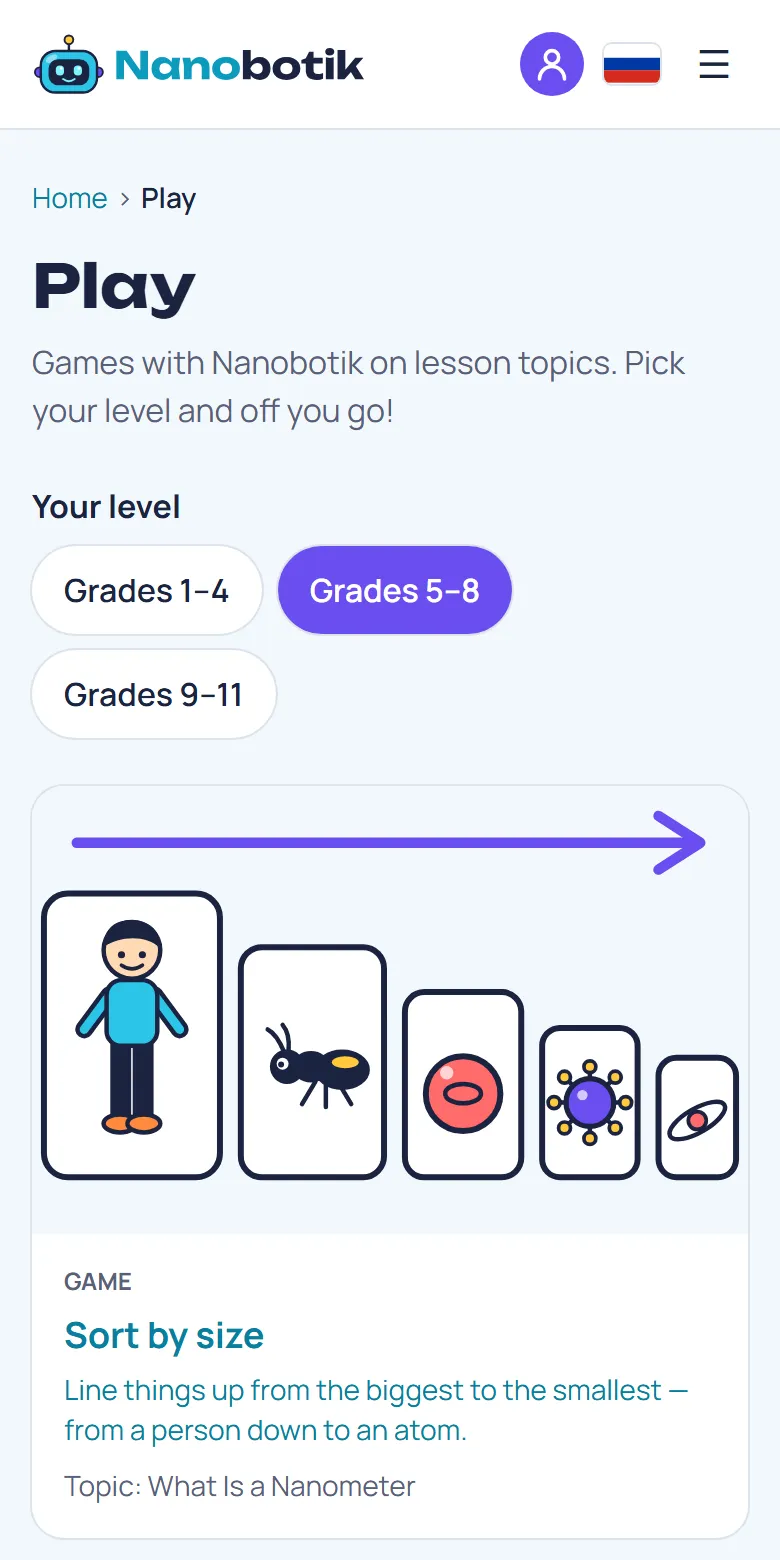
- Games with Nanobotik on lesson topics.
- Lab
- Virtual experiments and experiments at home.
- Videos
- Short videos with Nanobotik on lesson topics, with subtitles.
- Weekly rating
- Students ranked by nanoparticles; you can hide yourself.
- My Nanobotik
- Your progress, assignments, groups, research and settings.
- Ask Nanobotik
- The helper explains tricky things using the site’s materials — for signed-in users.
- Sign up
- Nickname, password and grade — no name or email.
- Groups and assignments
- For a teacher and their students.
- Group journal
- Who has done what; download as a table for Excel.
- Research
- Students’ projects after a moderator’s check.
- “Wow!” and comments
- Responses to research projects.
- Report a problem
- If something is wrong with a project.
- Calendar
- Dates and events from the world of science.
- Glossary
- Clear explanations of science words.
- Gallery
- Images from microscopes.
- 3D gallery
- Images of the microworld and molecule models in 3D: you need red-cyan glasses.
- Sources
- Where facts and pictures come from.
- Search
- Across materials, lessons, the glossary and research.
- Language
- Russian or English — the switch is at the top of the page.
- Live quiz
- A quiz in class: questions on the screen, answers from phones with a code.
- Telegram
- Site news — in our Telegram channel. Telegram
- About the author
- Who makes the site and how to get in touch.
- Privacy
- What data the site keeps.
If something goes wrong
Don’t worry — everything can be fixed!
- Forgot your password? On the sign-in page press “Forgot your password?” and enter your recovery code. If you’re in a group, your teacher can reset your password.
- A page won’t open or shows an error? Go back to the home page and try again.
- Have a question or an idea? Write to the site author: belol@nanobotik.com
Good luck! Learn something new every day.
 I’m offended. Let’s talk tomorrow.